

The TEL Team are pleased to share a new feature in Rise Articulate that educators can use when creating e‑learning courses. This feature enables AI‑generated text‑to‑speech, providing a simple and accessible way to add professional narration without the need for manual recording.
What’s New with AI Audio in Rise Articulate?
Instant AI Narration
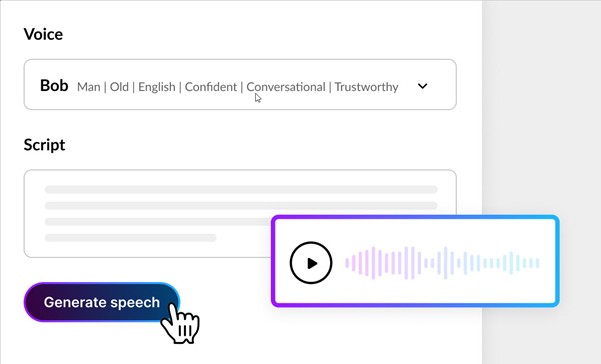
- Just type or paste your script – or let the AI Script Writer draft it – select a voice, and click “Generate.” A realistic, human‑sounding voiceover is ready in seconds.
Expanded Audio Support
AI audio is now supported across 22 Rise block types, including carousel, tabs, accordions, and more – giving you flexibility to narrate rich, interactive course elements.
High‑Quality Voice Library
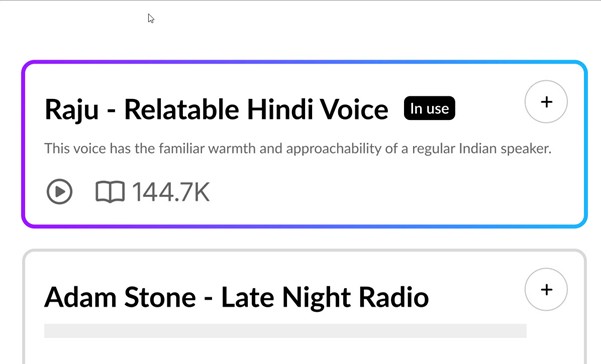
Choose from thousands of ultra‑realistic voices. Filter by gender, age, tone, or use case to find the perfect fit for your course.
Built‑in Transcriptions
Each AI‑generated narration includes a transcript. You can edit it or toggle visibility on/off -enhancing accessibility and learner engagement.
Seamless Script Creation
The AI Script Writer helps draft, refine, or transform narration scripts with just a few clicks. Spelling, tone, clarity – it’s all easier and faster to polish.
Assistive Tech Compatibility
Rise Articulate now supports Microsoft Narrator and Magnifier, further boosting accessibility for learners with vision challenges.
Why This Matters for Us
Boost Accessibility
Learners with visual impairments or different learning preferences benefit from narrated content that also provides on‑screen transcripts.
Save Time & Effort
No more tedious recordings or fumbling with external tools. AI‑generated audio streamlines the process – ideal when updates roll in or revisions are needed.
Engage Multisensory Learners
Voiceover can reinforce key messages, clarify complex ideas, and keep learners actively engaged.
Maintain Flexibility
Want to tweak the script or voice later? Just re‑generate – no need for re‑recording.
How to Use It in Rise Articulate
Add AI Narration
- For new blocks: Click “AI Audio” in the block shortcut bar, or browse to AI Blocks → Generate AI Audio.
- For existing blocks: Hover over the block → click Content (pencil icon) → Add audio icon → switch to the AI audio tab.
Select Voice and Script
- Choose a voice from the dropdown (preview options available), or explore the full voice library.
- Paste your script (up to 5,000 characters) or use the Write with AI button to generate one.
Generate and Review
- Click Generate Speech, wait a moment, then preview the audio. Access past versions in the History panel before inserting.
Edit as Needed
- Want to tweak? Hover over block → Edit Audio, choose a new voice or script, and regenerate.
Manage Transcript
- Click the microphone icon or use Edit Transcript options to display or edit the transcript.
Delete If Unneeded
- Hover → Remove audio icon, or delete the entire block for full removal.

What’s the Next Step?
Try It Out in Your Next Module
- Add narration to one course element and experience how quickly it enhances learning.
Share Your Adventures
- We would like to hear your feedback and see your voice‑powered modules created in Rise Articulate.
Get in Touch for Support
- Need help generating scripts, selecting voices, or applying audio strategically? We’re here to assist – drop us an email:
Contact the team
 Email
[email protected]
Email
[email protected]